XER VIEWER GUIDE · Updated November 3, 2026
How to open an XER file without Primavera P6
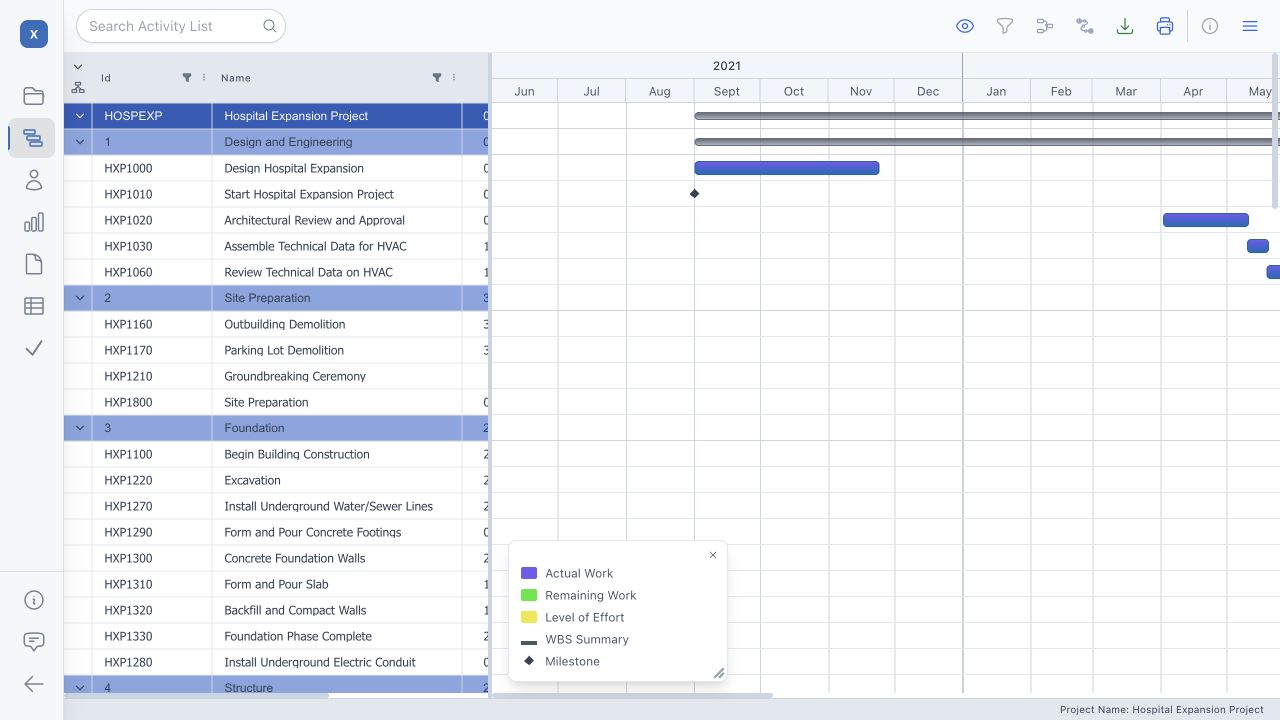
XER Viewer is an online XER reader and schedule reader for Primavera P6 exports. You can open a .xer file in a modern web browser. You do not need to install Primavera P6 or connect to its database.
What you need
Have the original .xer file from the scheduler and a browser with JavaScript enabled. This guide covers Primavera P6 XER exports; renaming a PDF, Microsoft Project file or XML file to .xer does not convert it.
Open and explore the schedule
- Open the viewer. Go to xerviewer.org.
- Select your XER file. Drag it onto the upload area or use the file picker. The browser reads the schedule locally on your device.
- Explore the available views. Use the Gantt view to inspect the timeline and relationships. Use table views to inspect activities and the work breakdown structure (WBS), and resource views when the export contains resource data.
- Find the information you need. Search, sort and filter the schedule. Check activity dates, status and float alongside the schedule's data date before drawing conclusions.
Do my schedule files leave my device?
XER Viewer parses XER files in your browser rather than uploading them for server processing. Follow your organization's rules for handling confidential schedules, including any Excel or PDF files you choose to save. See the privacy policy for details about the website.
What a viewer does—and what it cannot replace
A viewer lets you inspect the exported schedule without a P6 installation. The file is a snapshot: it does not provide a live connection to the scheduler's project database. Viewing an export is not the same as running P6's scheduling calculation or updating the source project.
If the file does not open
- Confirm that you received an actual Primavera P6 XER export, rather than a PDF or another file format.
- If the file arrived in a ZIP archive, extract the XER file first.
- Ask the sender for a fresh export if the file appears incomplete or damaged. Changing its extension will not repair it.
- For a large schedule, allow time for processing. Browser memory and device performance can affect the result.