XER VIEWER GUIDE · Updated November 3, 2026
How to export XER data to Excel
Open a Primavera P6 XER file in XER Viewer, a browser-based XER reader, then use the Excel export menu to download schedule tables as an .xlsx workbook.
Before you start
You need a Primavera P6 .xer file. If you have not opened it yet, follow how to open an XER file without Primavera P6. Browser file parsing and workbook generation happen on your device.
Export the schedule tables
- Open your XER file from the viewer's upload area.
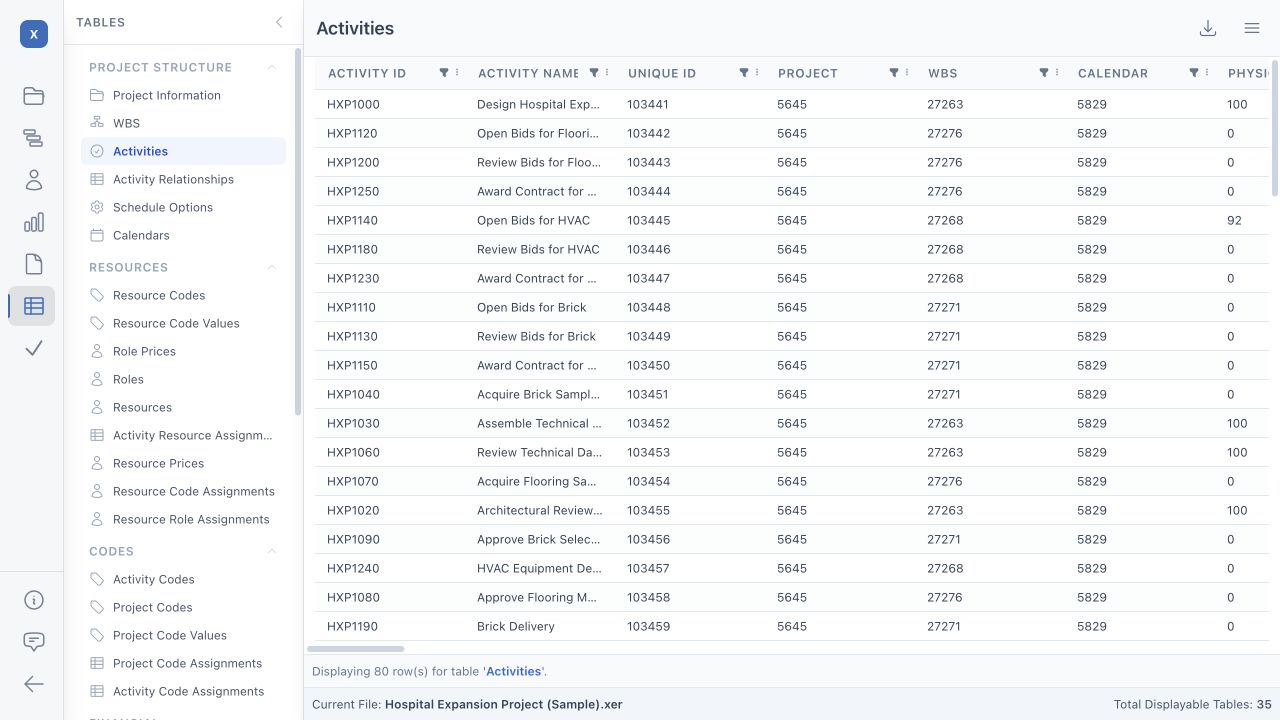
- Select a table in the schedule workspace, such as Activities or WBS.
- Open the Excel export menu. Look for the toolbar button labelled Export to Excel.
- Choose the scope. Use Selected table for the current table, All tables for one workbook with one sheet per table, or Select tables… to choose a set of tables.
- Save and review the workbook. Open the downloaded .xlsx file in Excel or another compatible spreadsheet application. Check the sheets and column headings before using the data in a report.
Which export should I choose?
- Selected table: useful when you only need one dataset to review or share.
- All tables: useful when you want the available datasets together in one workbook.
- Select tables…: useful when you need several related datasets without exporting everything.
Understand the exported data
An XER contains separate datasets for activities, relationships, resources and other schedule information. Some columns contain identifiers that refer to rows in another table. Export related tables when you need to interpret those references, and verify dates, units and row counts against the viewer.
The table export is a data workbook. It is not a live link to Primavera P6, a replacement scheduling engine or a guarantee that Excel will reproduce the interactive Gantt chart. Editing the workbook does not update the original XER file.
If a table is missing or empty
Check whether it contains data in the source export and whether you selected it for export. Ask the scheduler for a new XER if the information you need was not included. Check your browser's download settings if the workbook does not appear.