XER VIEWER GUIDE · Updated November 3, 2026
How to export a styled Gantt chart to Excel
As a Primavera P6 schedule reader, XER Viewer can export your Gantt view as an Excel workbook with the activity list and a colored Gantt timeline together. The export uses your current view settings, including bar colors from the selected style preset.
Prepare your Gantt view
- Open your Primavera P6 XER file. If you are new to the viewer, follow how to open an XER file without Primavera P6.
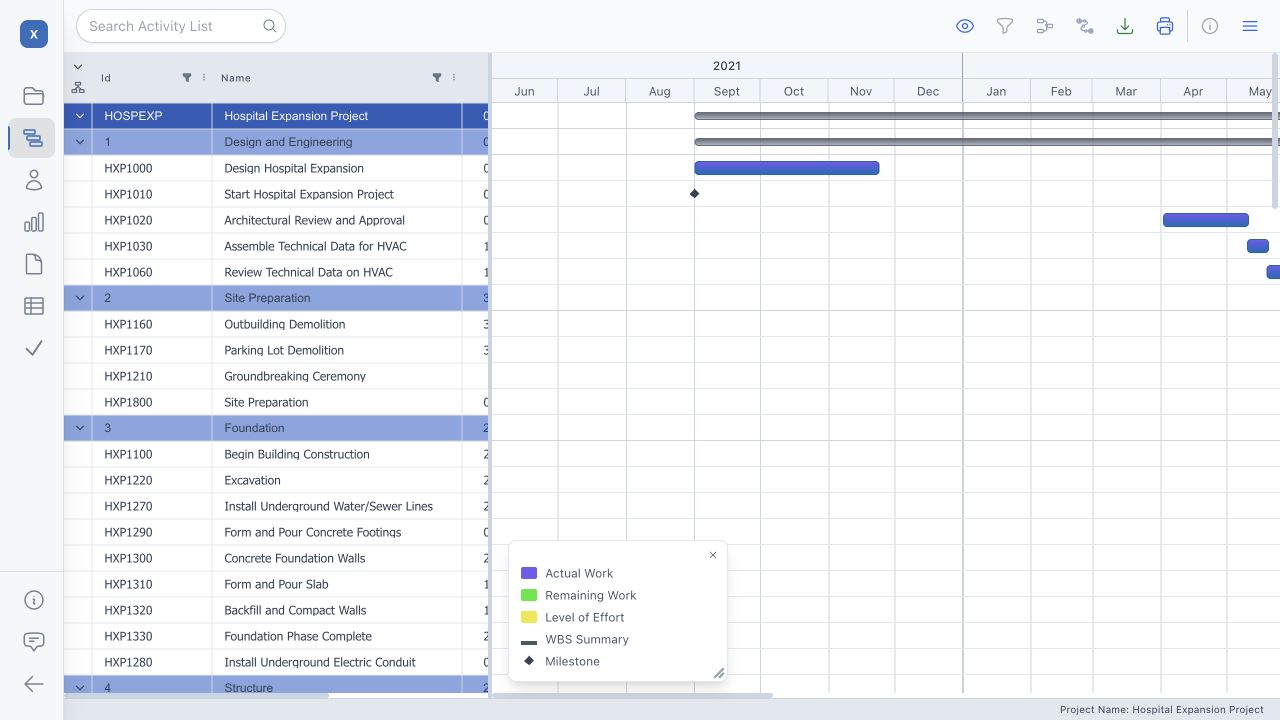
- Switch to the Gantt view. Choose the activity columns you need and arrange them in the order you want to share.
- Set the scope. Apply filters and expand or collapse groups to show the rows you want to include. The export uses the rows currently shown in the Gantt view.
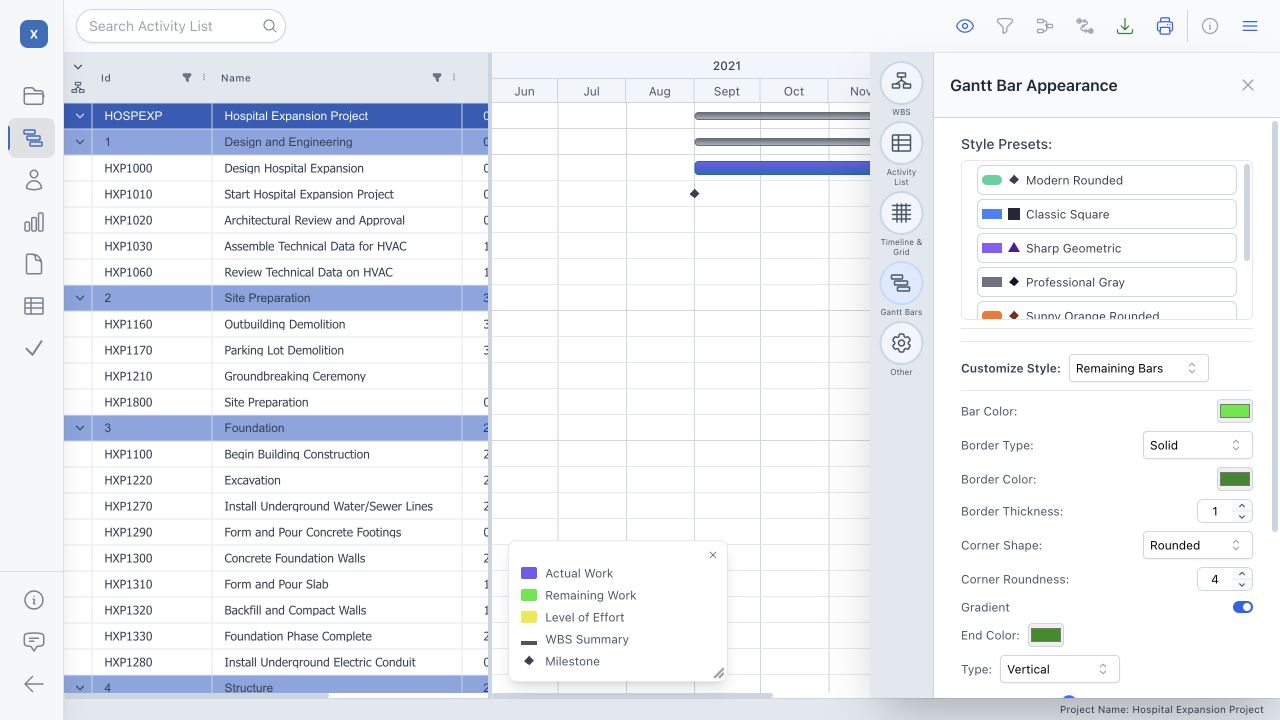
- Choose your styling. In the Gantt settings, open the bar settings and choose a Style Presets option. Review the actual, remaining and critical activity colors. Adjust the WBS/group colors and text settings as needed.
- Review the timeline. Set the timeline display mode and scale for the level of detail you need.
Export the styled view
- In the Gantt view toolbar, choose Export to Excel.
- Save the downloaded
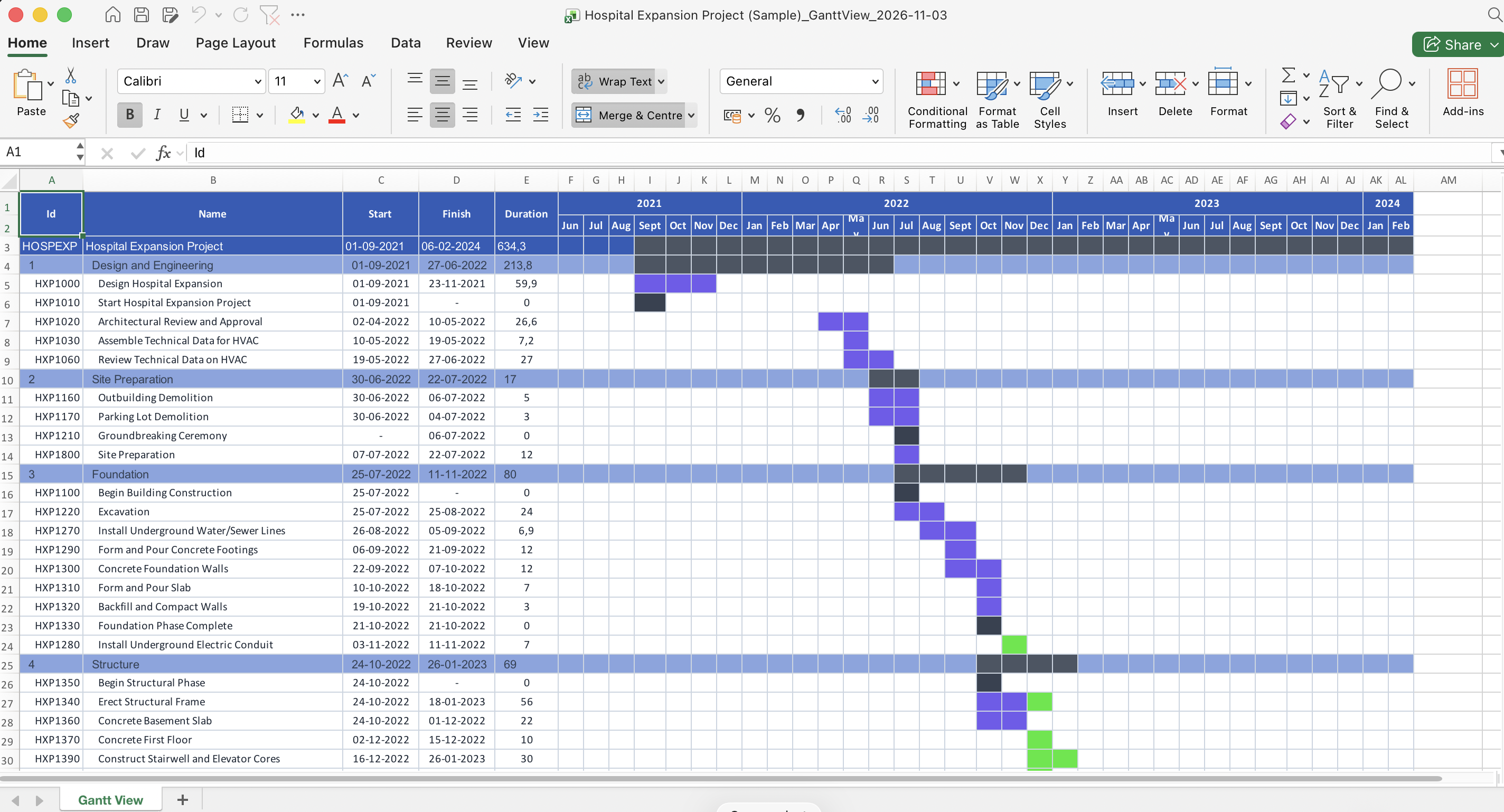
.xlsxfile. Its filename includes_GanttView_and the export date. - Open the workbook and select the Gantt View worksheet. The activity columns appear beside the timeline.
- Review the included rows, timeline periods and colors before sharing or printing the workbook.
Which settings carry over?
- Activity list: visible columns in their current order, displayed cell values and the rows currently shown.
- Timeline: period headings and colored cells representing schedule bars.
- Bar colors: applicable actual, remaining, critical, milestone, level-of-effort and WBS summary colors from the current settings, including task-specific style overrides.
- Group styling: WBS and activity-code group colors and supported font settings.
How the chart appears in Excel
The Excel Gantt is built from styled worksheet cells. It is useful for sharing schedule rows and a timeline in the same workbook. Bar shapes, rounded corners, relationship arrows and other interactive browser details are not reproduced as an identical drawing. The selected preset supplies applicable colors; it does not make every visual setting transferable to Excel.
The workbook is a snapshot of the exported view. It is not linked to the XER file, and editing cells does not recalculate the Primavera schedule or update the source project.
Gantt export or table export?
Use Export to Excel from the Gantt view when you want the activity list alongside a styled timeline. Use the table export workflow when you want selected datasets or all XER tables as workbook sheets.